What Internet Speed Do You Need for IPTV in 2026? Complete Guide
When setting up digital television streaming, one of the most fundamental questions every viewer asks is: how much internet speed do I need for IPTV? Streaming live television channels over the internet relies on continuous, real-time data transmission. Unlike on-demand services like Netflix or YouTube—which can pre-buffer several minutes of video in advance—live IPTV streams must process video frames with minimal delay. This makes connection throughput, latency, and stability critical to your overall viewing experience.
The direct answer is that there is no single universal internet speed for IPTV that applies to every household. Recommended bandwidth varies based on streaming resolution, video bitrate, encoding format, home network setup, and the number of active devices sharing your connection.
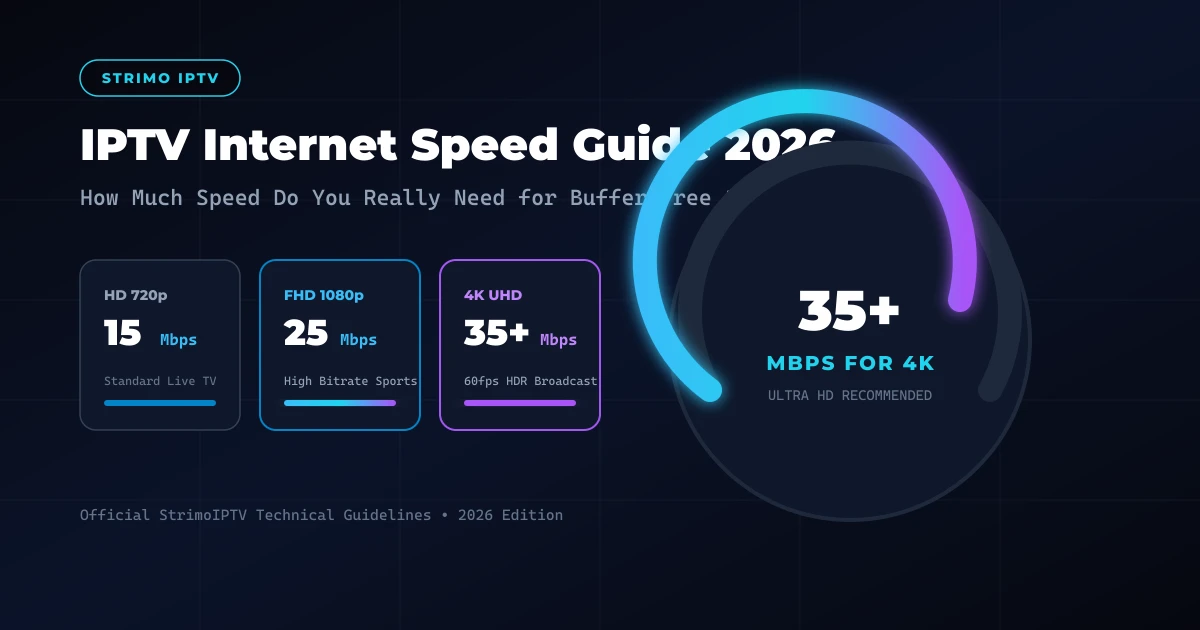
However, as a practical baseline, StrimoIPTV currently recommends the following download speed guidelines:
- 15 Mbps for Standard High Definition (HD 720p)
- 25 Mbps for Full High Definition (Full HD 1080p)
- 35 Mbps or more for 4K Ultra High Definition (4K 2160p / HDR)
These figures represent practical starting recommendations designed to provide smooth playback while accommodating minor bandwidth fluctuations. In this comprehensive technical guide, we will break down exact IPTV speed requirements, explore how video bitrates affect network consumption, analyze multi-device household setups, compare Wi-Fi versus Ethernet connections, and troubleshoot buffering despite having a fast connection.
What Internet Speed Do You Need for IPTV in 2026
How Much Internet Speed Does IPTV Need?
To understand IPTV internet speed requirements, it is helpful to look at how video content is formatted and delivered over the internet. When you tune into a channel on a premium service like StrimoIPTV, the server sends a continuous compressed stream of audio and video packets to your receiver or Smart TV.
The total amount of data transferred every second is known as the video's bitrate, typically measured in Megabits per second (Mbps). Higher video resolutions require more pixels per frame, which increases the bitrate needed to maintain sharp picture quality without visual compression artifacts.
Here is a practical breakdown of IPTV speed requirements based on streaming quality tiers:
| Streaming Quality | Practical Speed Guideline | Best For |
|---|---|---|
| SD (480p) | 5 – 10 Mbps | Low-bandwidth mobile connections & legacy devices |
| HD (720p) | 10 – 15+ Mbps | Standard live television & mobile viewing |
| Full HD (1080p) | 20 – 25+ Mbps | High-bitrate 60fps live sports & general entertainment |
| 4K Ultra HD (2160p) | 35 – 50+ Mbps | 4K Ultra HD broadcasts, HDR events & premium VOD |
It is essential to note that resolution alone does not determine exact data consumption. Two different live channels broadcasting at 1080p resolution can consume vastly different amounts of bandwidth based on three critical factors:
- Video Bitrate: A highly compressed 1080p stream may only use 6 Mbps, whereas an uncompressed high-bitrate 1080p sports broadcast at 60 frames per second can require 12 to 18 Mbps of raw data transmission.
- Codec Efficiency: Modern compression codecs like H.265 (HEVC) and AV1 are significantly more efficient than legacy H.264 codecs. An HEVC 4K stream can deliver crystal-clear quality at 25 Mbps, whereas an older H.264 stream might need 45 Mbps to achieve similar clarity.
- Network Overhead: Your internet protocol adds approximately 5% to 10% network overhead for packet headers, encryption, and error correction. Therefore, your connection must always provide slightly more capacity than the raw video stream bitrate.
What Internet Speed Does StrimoIPTV Recommend?
According to our official setup documentation and StrimoIPTV installation guide, our technical team advises reserving dedicated bandwidth for your streaming devices:
- 15 Mbps → HD Streaming: Provides dependable, smooth playback for standard 720p live television channels and basic on-demand video.
- 25 Mbps → Full HD Streaming: Ensures crisp 1080p playback, especially for high-action events and 60fps sports channels where fast motion requires higher frame rates.
- 35 Mbps or more → 4K Streaming: Recommended for uncompressed 4K Ultra HD live broadcasts, HDR movies, and multi-channel surround sound audio feeds.
Crucially, these numbers reflect available bandwidth dedicated to the streaming device, rather than the total advertised package speed from your Internet Service Provider (ISP).
If your household subscribes to a 100 Mbps fiber plan, but three family members are simultaneously downloading large game files or streaming 4K video on separate devices, the available bandwidth for your IPTV player may drop below 15 Mbps. This scenario frequently leads to unexpected buffering, even though your internet speed test shows 100 Mbps when tested on an idle phone.
Download Speed vs Latency vs Jitter for IPTV
When users evaluate their internet connection for television streaming, they usually focus exclusively on download speed (Mbps). However, live streaming quality relies on three distinct network metrics:
1. Download Speed (Throughput): The total volume of data your internet connection can download per second. Adequate throughput prevents long initial buffer loads and ensures consistent high-resolution video frame processing.
2. Latency (Ping in ms): The time required for a data packet to travel from your Firestick or Smart TV to the streaming server and back. Lower ping (under 50ms) ensures fast channel changing and quick Electronic Program Guide (EPG) loading.
3. Jitter & Packet Loss: Jitter measures the variance in latency over time, while packet loss represents data packets that fail to reach your device. High jitter or packet loss forces your player to freeze and re-request missing video frames, causing mid-stream buffering even if your download speed is over 200 Mbps.
To maintain buffer-free viewing on premium packages like StrimoIPTV pricing plans, your connection should ideally maintain a ping under 50ms, jitter below 10ms, and 0% packet loss.
Is 100 Mbps, 50 Mbps, or 25 Mbps Enough for IPTV?
To determine whether your existing internet package is sufficient for live television streaming in 2026, let us analyze real-world usage scenarios across common speed tiers:
Is 100 Mbps Enough for IPTV?
Yes, 100 Mbps is more than enough for IPTV. A 100 Mbps connection easily supports multiple 4K and Full HD streams simultaneously across several rooms while leaving ample bandwidth for web browsing, smart home automation, and background updates. A 100 Mbps plan represents the sweet spot for modern multi-device families.
Is 50 Mbps Enough for IPTV?
Yes, 50 Mbps is fully sufficient for single or dual-stream households. With 50 Mbps of stable bandwidth, you can stream one 4K Ultra HD broadcast at 35 Mbps or two Full HD 1080p channels at 20 Mbps each without experiencing playback disruption, provided no heavy file downloads are active simultaneously.
Is 25 Mbps Enough for IPTV?
Yes, 25 Mbps is sufficient for a single Full HD (1080p) stream. However, operating on a 25 Mbps connection leaves limited headroom for background network activity. If another device in your home starts streaming video or running cloud backups, your available speed may drop below the required threshold for uninterrupted playback.
Is 10 Mbps Enough for IPTV?
10 Mbps is adequate for Standard Definition (SD) or compressed 720p HD streaming. It is generally insufficient for consistent 1080p 60fps live sports or 4K Ultra HD broadcasts. Users on 10 Mbps connections should select lower video profiles in their player settings to prevent stream buffering.
Multi-Device Bandwidth Requirements
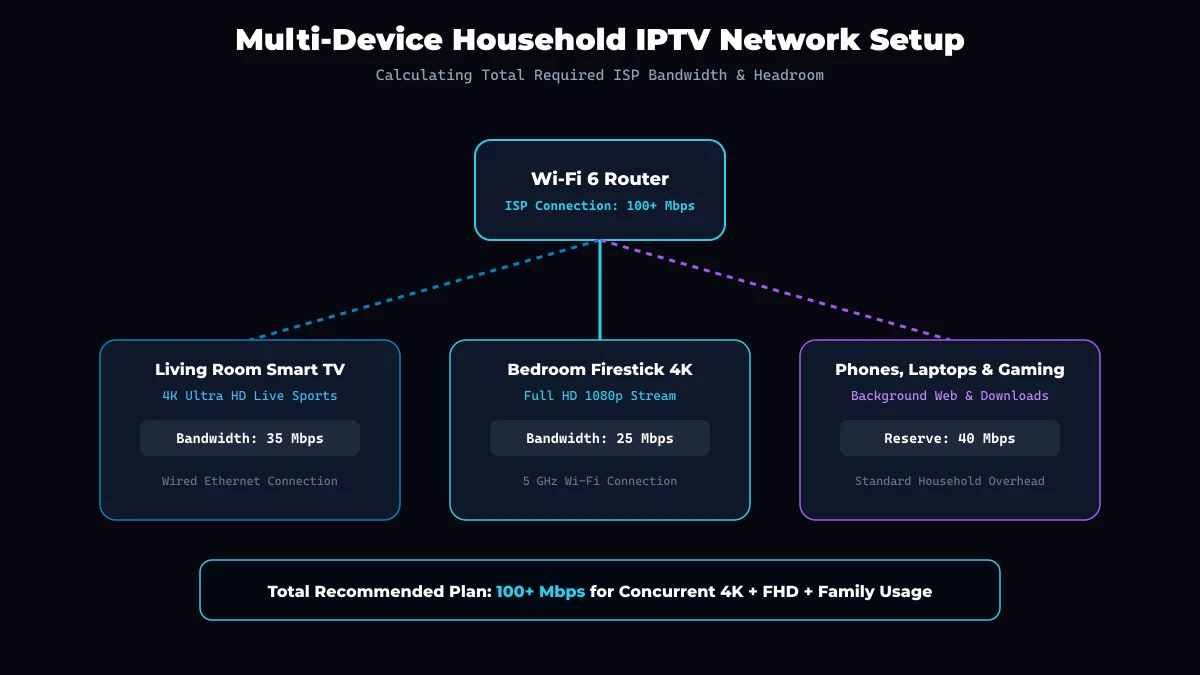
One of the most common oversights when planning home internet requirements is failing to account for multi-room IPTV streaming. If you plan to connect several Smart TVs, Firesticks, or mobile devices across your home, your total required bandwidth scales directly with the number of active screens.
Here is how dedicated bandwidth scales for multi-device households:
| Active IPTV Streams | Full HD (1080p) Recommended | 4K Ultra HD (2160p) Recommended | Recommended Household Plan |
|---|---|---|---|
| 1 Device | 25 Mbps | 35 – 50 Mbps | 50+ Mbps Plan |
| 2 Devices | 50 Mbps | 70 – 100 Mbps | 100+ Mbps Plan |
| 3 Devices | 75 Mbps | 105 – 150 Mbps | 200+ Mbps Plan |
| 4+ Devices | 100+ Mbps | 140 – 200+ Mbps | 300+ Mbps Fiber Plan |
When calculating your home network needs, always add a 20% to 30% bandwidth cushion above your streaming requirements to accommodate smart phones, laptops, security cameras, and automated background software updates.
Get Your Strimo IPTV Free Trial
Test our premium anti-freeze 4K IPTV service for 24 hours with zero commitment. Instant setup to watch over 50,000+ live channels, sports, and 200,000+ VODs on any device!
12 Reasons Why IPTV Buffers Despite Fast Internet
If your internet speed test shows 100 Mbps or 500 Mbps, yet your live television stream stutters, pauses, or loops, the issue is almost never raw download speed. Instead, one of several underlying local network or hardware factors is causing stream degradation:
- 2.4 GHz Wi-Fi Congestion: The legacy 2.4 GHz Wi-Fi band suffers from heavy interference from neighboring routers, Bluetooth gadgets, and household appliances, resulting in severe packet loss.
- Wi-Fi Signal Attenuation: Distance, thick concrete walls, and metal objects degrade wireless signals, causing speed drops from 200 Mbps near the router down to 5 Mbps behind your TV.
- ISP Throttling: Certain Internet Service Providers detect high-volume continuous video streams during peak evening hours (7 PM – 11 PM) and artificially throttle connection speeds.
- Hardware CPU Overheating: Compact streaming sticks like legacy Firesticks can overheat during extended 4K playback, causing the internal processor to throttle and drop video frames.
- Overloaded Device RAM: Running multiple heavy background apps on your TV hardware exhausts memory, leading to player lag and decoding errors.
- Incorrect Player Decoder: Using software decoding (SW) instead of hardware acceleration (HW) forces the device CPU to handle video rendering, causing stuttering.
- Router Bufferbloat: Cheap ISP-provided routers fail to prioritize real-time video traffic when other devices upload or download files simultaneously.
- Corrupted App Cache: Accumulated temporary stream files in your player app can slow down playlist indexing and EPG synchronization.
- Outdated Player Software: Running outdated app versions can lead to compatibility issues with updated video stream codecs.
- Background App Syncing: Automatic cloud backups, app updates, or torrent downloads on family laptops can consume peak upload and download capacity.
- Faulty HDMI or Ethernet Cables: Damaged Cat5 or HDMI cables can introduce signal noise, causing intermittent handshake drops and playback pausing.
- Server-Side Peak Congestion: During major global sporting events, unoptimized streaming servers can experience temporary capacity bottlenecks.
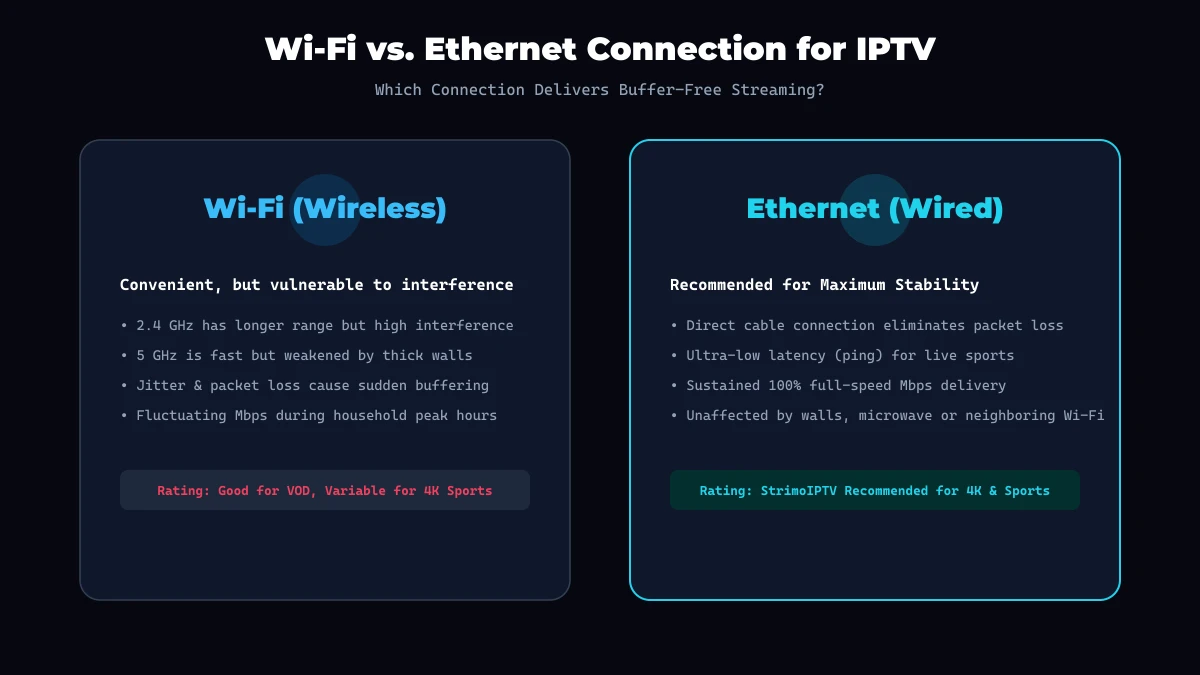
Wi-Fi vs Ethernet for IPTV Streaming
The physical connection between your streaming hardware and your home router plays a vital role in live television stability. While wireless connectivity offers convenience, direct cabling provides superior reliability.
 Wi-Fi vs Ethernet for IPTV Streaming
Here is a direct technical comparison between Wi-Fi and wired Ethernet:
| Feature | 2.4 GHz Wi-Fi | 5 GHz / Wi-Fi 6 | Wired Ethernet (Cat6) |
|---|---|---|---|
| Max Real Throughput | 30 – 70 Mbps | 200 – 600+ Mbps | 100 – 1000 Mbps |
| Latency (Ping) | 15 – 45 ms (Variable) | 5 – 15 ms | 1 – 3 ms (Ultra-Stable) |
| Packet Loss Risk | High | Moderate | Virtually 0% |
| Wall Penetration | Good | Moderate | Unaffected |
| Interference Risk | Very High | Low | Zero External Interference |
| Recommended For | Basic SD/HD Mobile | 1080p / 4K near router | 4K Live Sports & Main TV |
For optimal performance on primary viewing devices like 4K Smart TVs and Firesticks, we strongly recommend connecting via a Cat6 Ethernet cable or an official Firestick Ethernet adapter. Wired connections eliminate wireless signal drops and deliver 100% of your available internet speed directly to your player.
How to Test Your Real Internet Speed for IPTV
Standard browser speed tests often measure short burst downloads from local web servers, which does not accurately reflect your device's ability to maintain a continuous live video stream.
Follow this 7-step protocol to measure real-world streaming throughput directly on your TV hardware:
- Open your TV browser or app store on your Firestick, Android TV, or Smart TV.
- Download a TV-optimized speed test app or visit an HTML5 speed test site like fast.com or speedtest.net.
- Run the test during peak hours (between 7:00 PM and 11:00 PM) when neighborhood network traffic is highest.
- Check the download speed result and ensure it meets our recommended 25 Mbps threshold for Full HD or 35 Mbps for 4K.
- Inspect the ping and latency measurement: Ensure latency is under 50 ms.
- Verify jitter levels: If your speed test tool displays jitter, confirm it is under 10 ms.
- Repeat the test three times over a 15-minute window to identify intermittent signal drops.
If your TV speed test shows significantly lower speeds than your phone tested next to the router, your TV is suffering from local Wi-Fi signal loss or wireless interference.
Streaming Device Bandwidth & Performance Comparison
Different streaming devices feature varying Wi-Fi antennas, network chipsets, and video decoders. Choosing a capable hardware platform is just as important as subscribing to a fast internet plan.
 Home Network Setup Diagram
Here is how popular streaming hardware compares in network handling and processing power:
1. Amazon Fire TV Stick 4K Max & Fire TV Cube
Equipped with Wi-Fi 6 / 6E support, powerful quad-core processors, and dedicated hardware decoders for AV1 and HEVC formats. They handle high-bitrate 4K streams with minimal buffer loading and support external Ethernet adapters.
2. Apple TV 4K
Features a gigabit Ethernet port, Wi-Fi 6, and Apple's high-performance A-series processors. Apple TV offers exceptional buffer management, ultra-fast app navigation, and flawless frame rate matching.
3. Android TV & Nvidia Shield TV Pro
The Nvidia Shield TV Pro remains a benchmark for power users, featuring gigabit Ethernet, AI 4K upscaling, and advanced audio pass-through. Standard Android TV devices like the Chromecast with Google TV offer robust 5 GHz Wi-Fi and hardware decoding.
4. Smart TVs (Samsung Tizen / LG webOS)
Built-in Smart TV operating systems often feature lower-tier processors and 100 Mbps Ethernet limits. While convenient, built-in TV apps can suffer from memory bottlenecks when processing heavy EPG data compared to dedicated streaming sticks.
IPTV Data Usage Calculator (Hourly & Monthly)
Understanding how much data live streaming consumes is essential if your Internet Service Provider enforces monthly data caps (such as 1 TB per month).
Here is an estimated data consumption guide across common streaming resolutions:
| Video Resolution | Estimated Bitrate | Data per Hour | Data per Month (4 Hrs/Day) |
|---|---|---|---|
| SD (480p) | 3.5 Mbps | ~1.5 GB / hour | ~180 GB / month |
| HD (720p) | 8.0 Mbps | ~3.6 GB / hour | ~432 GB / month |
| Full HD (1080p 60fps) | 18.0 Mbps | ~8.1 GB / hour | ~972 GB / month |
| 4K Ultra HD (2160p) | 35.0 Mbps | ~15.75 GB / hour | ~1,890 GB / month |
If your ISP imposes a strict 1 TB monthly data limit, watching 4K Ultra HD live broadcasts for more than two hours per day will exceed your monthly data allowance. In such cases, switching your player resolution to 1080p HD helps keep data usage within limits.
Speed & Network Troubleshooting Checklist
Before reaching out to technical support or upgrading your internet plan, run through this step-by-step diagnostic checklist to resolve connection issues:
- Restart your home router: Unplug your modem/router power cable for 30 seconds to flush stale NAT tables and reset DNS caches.
- Switch to the 5 GHz Wi-Fi band: Connect your Firestick or Smart TV to your router's 5 GHz network SSID rather than the slower 2.4 GHz band.
- Disconnect idle bandwidth-heavy devices: Pause large game downloads, cloud backups, or torrent clients on home PCs.
- Clear player app cache: Navigate to your TV settings menu (Settings > Applications > Manage Installed Applications > Your Player) and select Clear Cache.
- Change video decoder in app settings: Switch your player hardware acceleration setting from Software to Hardware (HW) or ExoPlayer.
- Connect via Ethernet cable: Test a direct Cat6 wired connection to rule out wireless signal drops.
- Verify service status: Check our StrimoIPTV FAQ section or contact our StrimoIPTV customer support team to confirm network status.