IPTV Not Working in 2026? 15 Common Problems and How to Fix Them
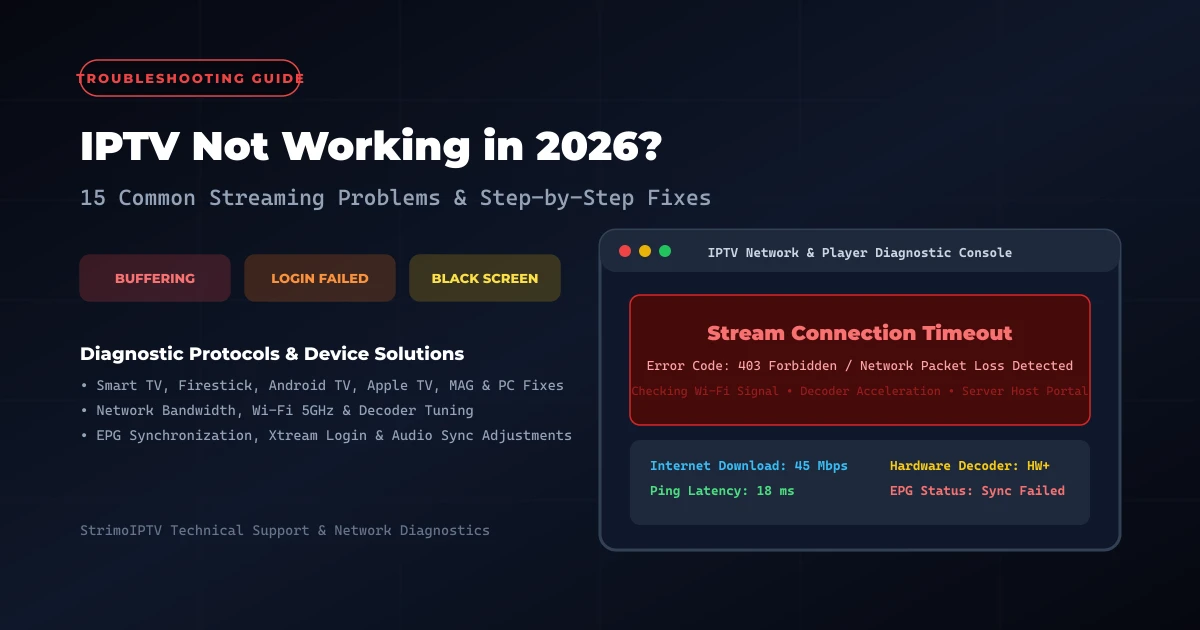
Your IPTV suddenly stopped working. What should you check first? When live streaming freezes, channels fail to load, or an app displays a cryptic connection error, it is easy to assume that your service is down or your device is broken. However, because internet television streaming relies on multiple interconnected layers—including home Wi-Fi networks, router NAT tables, TV hardware memory, player software decoders, and provider server portals—the phrase IPTV not working can describe dozens of distinct technical issues.
Understanding where the failure occurs is the fastest path to resolving IPTV connection problems. For example, troubleshooting an application that refuses to open requires an entirely different approach than fixing IPTV buffering on a high-bitrate sports stream. Similarly, resolving an IPTV login failed error involves checking subscription credentials, whereas fixing an IPTV black screen requires tuning hardware video decoders.
Whether you stream live TV on a Smart TV (Samsung Tizen, LG webOS, Android TV), Amazon Firestick, Apple TV, MAG set-top box, mobile phone, or PC, this comprehensive diagnostic guide will help you isolate the root cause. Rather than making random adjustments, follow our structured diagnostic mindset to identify whether the issue originates from your internet connection, your TV hardware, your player application, or your streaming provider.
IPTV Not Working in 2026 Troubleshooting Guide
Before You Start: Quick IPTV Troubleshooting Checklist
Before adjusting advanced application decoders or changing network settings, perform these ten baseline checks. Isolating the failure point early saves time and prevents unnecessary configuration changes:
- 1. Verify basic internet connectivity: Open a web browser or speed test app on another home device to confirm your home internet is online.
- 2. Restart the IPTV app: Force-close your player application (such as IPTV Smarters Pro or TiviMate) and reopen it to flush temporary memory.
- 3. Restart your streaming device: Perform a full system reboot on your Firestick, Smart TV, or Android box to clear system RAM.
- 4. Power-cycle your router: Unplug your home modem/router for 30 seconds to clear stale NAT sessions and reset local DNS caches.
- 5. Double-check your account credentials: Verify your server URL, username, and password for typos or accidental whitespace.
- 6. Test a different live channel: Switch from a high-demand sports broadcast to a standard news feed to rule out single-channel outages.
- 7. Test a different category: Switch from Live TV to Video On Demand (VOD) to verify server portal connectivity.
- 8. Compare multiple devices: Test your subscription on a smartphone or second TV to determine if the issue is device-specific.
- 9. Check household internet load: Ensure family members are not running heavy cloud backups, game updates, or torrent downloads.
- 10. Isolate single vs. universal failure: Identify whether the issue affects one channel, one category, one device, or your entire home setup.
Critical Troubleshooting Rule: Never change ten settings at once. Apply one diagnostic change at a time, test playback, and evaluate the result. This methodical approach ensures you pinpoint the precise cause of IPTV problems without creating new configuration errors.
The 15 Most Common IPTV Problems & How to Fix Them
Below is a detailed diagnostic breakdown of the 15 most frequent streaming issues encountered by viewers in 2026, complete with root causes, testing steps, and practical solutions.
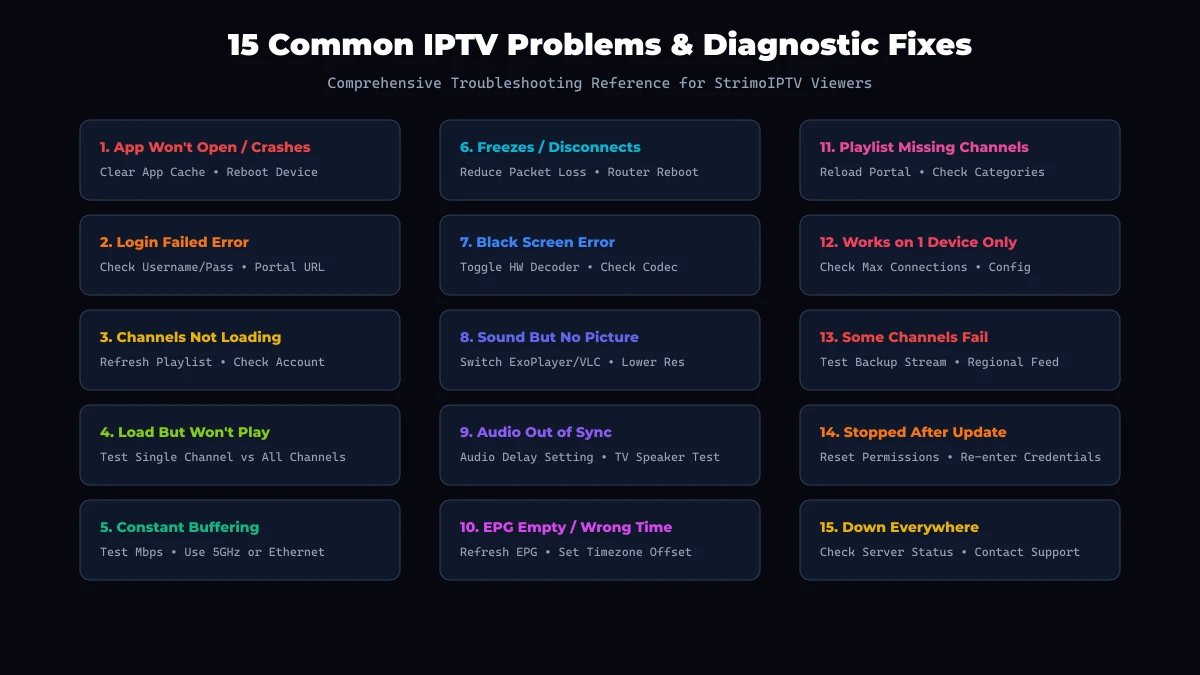 15 Common IPTV Problems Overview
PROBLEM 1: IPTV App Won't Open or Keeps Crashing
An IPTV app not working or crashing immediately upon launch indicates a software execution or memory handling error on your streaming device.
1. What the Problem Looks Like
You click the app icon on your Firestick, Smart TV, or Android box. The app shows a splash screen for a second and abruptly closes, returns to the home screen, or displays a black box that stays frozen.
2. Possible Causes
- Depleted device internal storage or low operating system RAM.
- Corrupted temporary application cache or database indexing files.
- Outdated application version incompatible with recent TV OS updates.
- Outdated device firmware causing application permission errors.
3. How to Diagnose It
- Close all background applications running on your device.
- Open a different application (like YouTube or Netflix) to confirm your operating system is functioning normally.
- Check your device's available internal storage space in system settings.
4. How to Fix It
- Clear App Cache: Navigate to Settings > Applications > Manage Installed Applications > [Your App] and click Clear Cache.
- Force Stop & Restart: Select Force Stop before re-launching the player app.
- Free Storage: Delete unused apps to ensure your device retains at least 1.5 GB of free internal space.
- Update Application: Update your application via your official app store, as recommended in our StrimoIPTV installation guide.
- Reinstall Application: Uninstall the player, reboot your streaming device, and perform a clean re-installation.
5. When to Contact Support
Contact application developers or device support if multiple native applications crash continuously after a full device factory reset.
PROBLEM 2: IPTV Login Failed Error
An IPTV login failed message prevents your application from authenticating with your provider's server portal.
1. What the Problem Looks Like
Upon entering your credentials, your player displays messages such as "Invalid Username or Password", "Authentication Error", "Host Error 403", or "Check Server URL".
2. Possible Causes
- Typo or accidental space added at the end of the username, password, or server URL.
- Entering credentials into the wrong authentication form (e.g., selecting M3U login when provided Xtream Codes API credentials).
- Expired subscription account line.
- Transposing ambiguous characters (such as confusing number "0" with letter "O", or capital "I" with lowercase "l").
- Temporary server-side portal update.
3. How to Diagnose It
- Review your account welcome email received upon subscribing to StrimoIPTV pricing plans.
- Test your credentials on a secondary device (such as an Android phone connected to cellular data) to isolate network blocks.
4. How to Fix It
- Verify Xtream API Format: Ensure you select Login with Xtream Codes API and complete three separate fields: Server URL (e.g., http://domain.com:port), Username, and Password.
- Remove Trailing Spaces: On-screen remote keyboards frequently insert an automatic space character after text entry. Delete extra spaces at the end of every line.
- Check Character Case: Credentials are case-sensitive. Verify uppercase and lowercase letters precisely.
- Confirm Portal URL Protocol: Ensure your server address includes http:// or https:// exactly as provided.
5. When to Contact Support
If your credentials are typed accurately without spaces yet authentication fails on both Wi-Fi and mobile networks, reach out to StrimoIPTV customer support to verify your account status.
PROBLEM 3: IPTV Channels Are Not Loading
This issue occurs when your player authenticates successfully, but your channel categories or station lists remain blank.
1. What the Problem Looks Like
The application opens and logs in, but selecting Live TV displays an empty list, spinning wheel, or "No Channels Found" message.
2. Possible Causes
- Playlist synchronization timed out due to network latency.
- Your provider updated the global channel bouquet layout.
- Corrupted local playlist cache stored within the app database.
- Account line reached its maximum active device connection limit.
3. How to Diagnose It
- Select Movies or Series to check if Video On Demand categories load.
- Check if another device logged into the same account is currently active.
4. How to Fix It
- Force Playlist Refresh: Open your app settings menu and select Refresh Playlist or Reload Channels.
- Clear Category Filters: If you applied parental locks or hidden categories, check your app filter settings to ensure categories are visible.
- Disconnect Secondary Devices: Ensure no other family members are streaming on the same line if your plan supports single-device access.
- Re-add Playlist: Delete the account profile from your player settings and re-add your Xtream API details.
5. When to Contact Support
If refreshing the playlist fails to populate categories across multiple devices, contact support to confirm server playlist availability.
PROBLEM 4: IPTV Channels Load but Won't Play
When IPTV channels not loading video content occurs, your station list is visible, but selecting a channel fails to render a video feed.
1. What the Problem Looks Like
You select a channel from your EPG guide. The player displays a black screen with a loading indicator for 15 seconds before showing "Playback Error", "Stream Unplayable", or returning to the channel menu.
2. Possible Causes
- Temporary stream outage on a specific broadcast source feed.
- Player video decoder incompatibility with the channel's stream format (H.265 vs H.264).
- Local network packet loss preventing stream handshake completion.
- ISP port blocking on specific video transport ports.
3. How to Diagnose It
- Single Channel vs. All Channels: Test 5 to 10 different channels across various country categories (e.g., test sports, news, and entertainment feeds).
- If only one channel fails while others play normally, the issue is isolated to a single broadcast feed.
4. How to Fix It
- Switch Video Decoder: Open player playback settings and switch the video engine from Software (SW) to Hardware (HW / HW+) or ExoPlayer.
- Change Stream Format: Toggle stream output format between MPEG-TS and HLS (.m3u8) in your app settings.
- Select HD Alternative: If a 4K stream fails to play, select the 1080p Full HD or 720p HD version of the same channel.
5. When to Contact Support
If every channel across all categories displays playback errors despite a fast connection, reach out to technical support for server diagnostic checks.
Get Your Strimo IPTV Free Trial
Test our premium anti-freeze 4K IPTV service for 24 hours with zero commitment. Instant setup to watch over 50,000+ live channels, sports, and 200,000+ VODs on any device!
PROBLEM 5: IPTV Keeps Buffering
IPTV buffering remains one of the most frustrating streaming issues, causing playback to pause, stutter, or drop resolution periodically.
1. What the Problem Looks Like
The live broadcast plays smoothly for 20 seconds, pauses while displaying a buffering percentage icon (e.g., 15%... 45%...), resumes for a few seconds, and pauses again.
2. Possible Causes
- Insufficient available internet download speed on the streaming hardware.
- Local Wi-Fi interference on the 2.4 GHz wireless frequency.
- Router bufferbloat or congested local network traffic.
- ISP traffic throttling during peak evening hours (7:00 PM – 11:00 PM).
- High-bitrate 4K stream exceeding your streaming device's processing capacity.
3. How to Diagnose It
- Run a speed test directly on your TV device (not your smartphone) using a TV speed test utility.
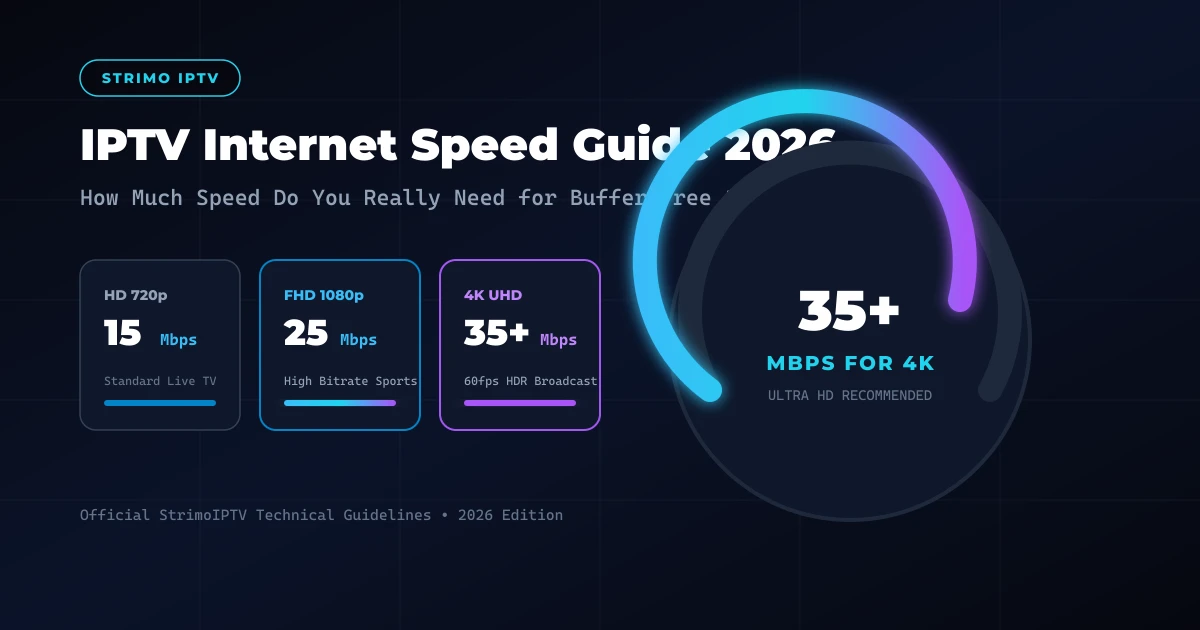
- Compare real-world speed against our recommended baseline:
| Quality Level | StrimoIPTV Bandwidth Recommendation |
|---|---|
| HD (720p) | 15 Mbps dedicated download speed |
| Full HD (1080p) | 25 Mbps dedicated download speed |
| 4K Ultra HD (2160p) | 35+ Mbps dedicated download speed |
For complete technical bandwidth analysis, consult our full guide to internet speed requirements for IPTV.
4. How to Fix It
- Switch to 5 GHz Wi-Fi: Move your TV or Firestick from legacy 2.4 GHz Wi-Fi to your router's 5 GHz network.
- Connect Wired Ethernet: Use a Cat6 Ethernet cable or Firestick Ethernet adapter for maximum network stability.
- Increase Player Buffer Size: Set your app pre-buffer size to Medium (3 to 5 seconds) to absorb wireless speed dips.
- Pause Heavy Network Activity: Stop large downloads, game updates, or torrent software running on household computers.
- Reboot Router: Restart your router to flush network buffer memory and refresh your IP lease.
5. When to Contact Support
If your TV speed test confirms 100+ Mbps over Ethernet, yet buffering persists across all channels, contact support to inspect server routing paths.
PROBLEM 6: IPTV Freezes or Disconnects During Playback
Stream freezing differs from standard buffering: rather than pausing temporarily to load frames, the video image locks up completely or kicks you back to the main menu.
1. What the Problem Looks Like
The picture freezes on a single frame while audio continues for a few seconds before stopping entirely, requiring you to change channels and tune back in to resume.
2. Possible Causes
- Severe Wi-Fi packet loss causing dropped network handshake packets.
- Hardware CPU overheating on compact streaming sticks during prolonged 4K playback.
- Router NAT timeout closing long-duration video socket connections.
- Temporary stream source interruption.
3. How to Diagnose It
- Touch your Firestick or streaming box to check if the unit feels hot.
- Test whether freezing occurs at specific times of day or continuously.
4. How to Fix It
- Use HDMI Extender: Attach the included HDMI extender cable to position your Firestick away from the warm back panel of your TV, improving cooling and Wi-Fi signal.
- Switch to Hardware Decoding: Ensure HW Acceleration is enabled to reduce CPU workload and heat.
- Configure Static IP: Assign a reserved local IP address to your streaming TV hardware in your router settings to prevent IP lease renegotiation drops.
5. When to Contact Support
If stream freezing occurs at exact time intervals across multiple applications, report the issue to support with your device model details.
PROBLEM 7: IPTV Shows a Black Screen
An IPTV black screen error can present as two distinct failure modes, each requiring a specific diagnostic approach.
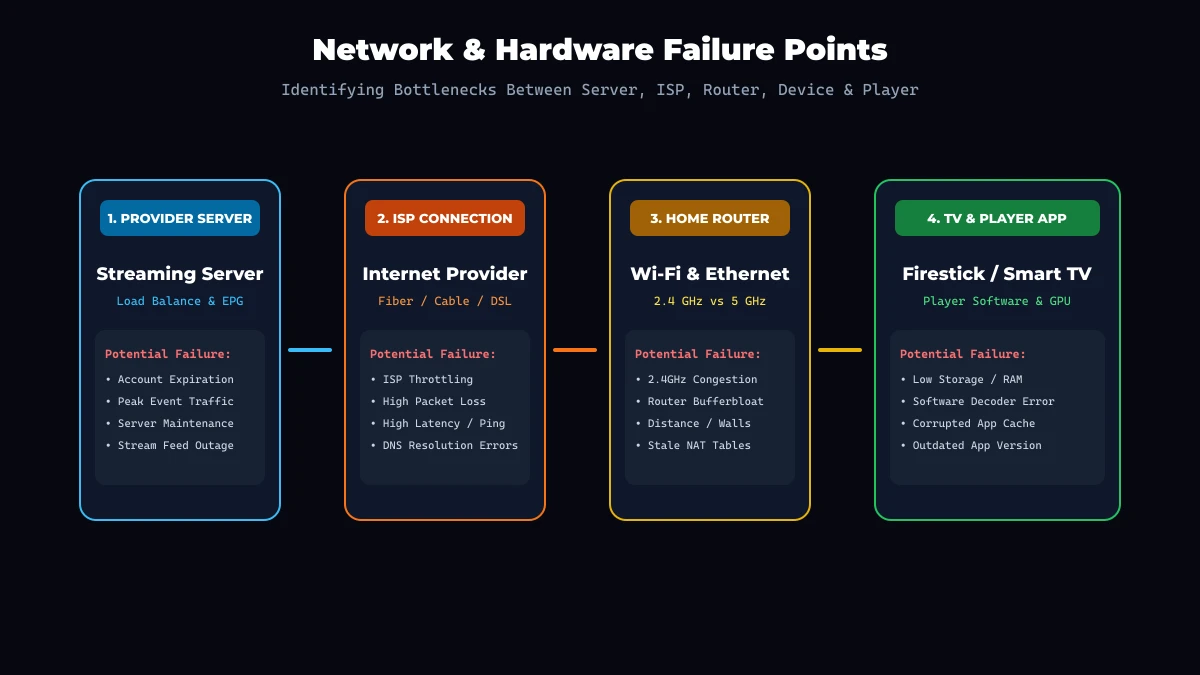 Network Troubleshooting Architecture Diagram
Scenario A: Black Screen with Normal Audio
- Cause: Video decoder failure or unsupported display resolution format. Audio decodes correctly, but the GPU fails to render video frames.
- Fix: Open player options and change video decoder from Software to Hardware (HW) or ExoPlayer. Adjust your TV output resolution settings (e.g., from 4K 60Hz to 1080p 60Hz).
Scenario B: Completely Black Screen with No Audio
- Cause: Complete stream loss, broken portal URL, or device processing lockup.
- Fix: Force-close the player app, clear app cache, and restart your TV. Verify that your subscription has not reached its expiration date on your StrimoIPTV account dashboard.
PROBLEM 8: IPTV Has Sound but No Picture
When encountering IPTV no sound or sound without video, the media container's audio track processes cleanly, but video rendering fails.
1. What the Problem Looks Like
You hear stadium commentary or background music clearly, but your TV screen displays a solid black, blue, or blank background.
2. Possible Causes
- Unsupported video compression codec (e.g., device lacks hardware decoding for H.265 / HEVC video feeds).
- Display Refresh Rate Auto-Switching error between your media player and TV screen.
- Misconfigured aspect ratio or video display settings within the app.
3. How to Diagnose It
- Switch to a Standard Definition (SD) or 720p HD channel to check if lower-resolution video renders.
- Test the same channel on an external player application (such as VLC Player or MX Player).
4. How to Fix It
- Enable Hardware Acceleration: Turn on HW / HW+ Decoder in your player settings.
- Disable Match Frame Rate: Turn off "Match Display Frame Rate" in your Firestick or Android TV display settings if your TV screen stutters during refresh rate switching.
- Switch External Player: In applications like IPTV Smarters Pro, select Settings > Player Selection and assign VLC Player for live TV playback.
5. When to Contact Support
If your streaming hardware is an older legacy box that lacks HEVC hardware decoders, contact support to discuss compatible player apps or device upgrade options.
PROBLEM 9: IPTV Audio and Video Are Out of Sync
Lip-sync errors occur when audio output leads or lags behind the actor's lip movements or live sports video action.
1. What the Problem Looks Like
A news anchor speaks, but their voice is heard 1 to 2 seconds before or after their mouth moves on screen.
2. Possible Causes
- Bluetooth headphone audio transmission latency.
- TV audio post-processing settings (such as Dolby Digital processing or soundbar audio passthrough delays).
- Player software buffer desynchronization.
- Stream-specific broadcast encoding offset.
3. How to Diagnose It
- Turn off external Bluetooth speakers or soundbars and test sound directly through internal TV speakers.
- Switch channels and return to confirm whether the delay is stream-specific or system-wide.
4. How to Fix It
- Adjust App Audio Sync: Use your player's built-in audio offset tool (found in players like TiviMate or OTT Navigator) to adjust audio delay by -200 ms to +500 ms.
- Toggle TV PCM Audio: In your TV sound settings, set digital audio output format to PCM or Stereo rather than Auto/Bitstream.
- Restart Stream: Pause live playback for 2 seconds and click Play to re-synchronize audio/video buffer clocks.
5. When to Contact Support
If audio delay occurs exclusively on a single channel across all hardware setups, report the station title to support for source feed adjustment.
PROBLEM 10: IPTV EPG Is Empty or Shows the Wrong Information
An IPTV EPG not working issue leaves your Electronic Program Guide timeline blank or displaying outdated show titles.
1. What the Problem Looks Like
The channel list displays station names, but the program guide timeline shows "No Information Available", blank spaces, or schedules shifted by several hours.
2. Possible Causes
- Initial EPG guide synchronization has not completed after first logging in.
- Timezone setting mismatch on your TV hardware or inside app guide settings.
- Cached guide data is outdated or corrupted.
- Incorrect XMLTV EPG source URL assigned in player settings.
3. How to Diagnose It
- Check your streaming device's system date, time, and timezone settings.
- Note that according to StrimoIPTV FAQ documentation, initial EPG synchronization can take up to 2 to 3 minutes upon first logging in.
4. How to Fix It
- Clear & Refresh EPG: Open your player EPG settings, select Clear EPG Data, and click Update Guide Data.
- Set EPG Time Offset: If show titles appear an hour ahead or behind local time, adjust EPG Time Shift (e.g., +1 hr or -1 hr) in app settings.
- Ensure Automatic System Time: In your TV/Firestick settings, enable Set Time Automatically via Network.
5. When to Contact Support
If guide data remains empty 10 minutes after refreshing on a correct timezone, contact technical support to confirm EPG server status.
PROBLEM 11: IPTV Playlist Is Empty or Missing Channels
This issue occurs when an IPTV playlist not loading fully leaves out specific country categories or expected channel groups.
1. What the Problem Looks Like
Your account connects successfully, but entire country categories (such as UK Sports, USA Entertainment, or Canadian news) are missing from your channel list.
2. Possible Causes
- Category visibility filters are disabled inside your app layout menu.
- Your provider updated channel category structures without your local app auto-updating.
- Subscription package line parameters were modified.
3. How to Diagnose It
- Log into your account settings to check active package options.
- Compare category lists across two different player applications.
4. How to Fix It
- Reload Playlist Data: Select Settings > Playlists > Reload inside your app.
- Reset Group Visibility: Open category management settings and select Show All Categories.
- Re-Authenticate Xtream API: Delete the playlist profile and re-enter your credentials to download fresh category mappings.
5. When to Contact Support
If specific regional categories remain missing after reloading, reach out to customer support to verify your package line configuration.
PROBLEM 12: IPTV Works on One Device but Not Another
This diagnostic scenario offers a valuable clue: if your subscription streams smoothly on your phone or laptop, but fails on your living room TV, the service itself is operating correctly.
1. What the Problem Looks Like
StrimoIPTV plays perfectly on your Android phone using Wi-Fi, but displays loading errors or buffering when launched on your Smart TV connected to the same home network.
2. Possible Causes
- Local Wi-Fi signal degradation behind the television display.
- Hardware CPU/RAM bottlenecks on older Smart TV operating systems.
- Incompatible player software decoders installed on the second device.
- Account connection limit exceeded (trying to stream simultaneously on two devices with a single-connection plan).
3. Diagnostic Matrix
Use this step-by-step diagnostic logic to isolate the fault:
[ Device A (Phone) Works ] + [ Device B (TV) Fails ]
               │
               ├──► Test 1: Connect TV via Ethernet cable
               │    └─► Fixed? Issue was Wi-Fi signal loss behind TV
               │
               ├──► Test 2: Verify active device connection count
               │    └─► Fixed? Issue was exceeding account device limit
               │
               └──► Test 3: Install recommended app (e.g. IPTV Smarters Pro)
                    └─► Fixed? Issue was player decoder on original app
4. How to Fix It
- Match Player Software: Install our recommended player application on your second device as listed in our guide to the best IPTV apps for Smart TV.
- Verify Account Device Allowance: Ensure your current plan on StrimoIPTV pricing plans supports multi-room simultaneous connections if streaming on two screens at once.
- Improve Device Network: Move your second device to 5 GHz Wi-Fi or plug in a direct Ethernet cable.
PROBLEM 13: Only Some IPTV Channels Work
When specific live channels fail while 90% of your channel list streams flawlessly, the issue is channel-specific rather than a total service failure.
1. What the Problem Looks Like
Channels 1 through 50 play instantly, but Channel 51 displays a black screen or spinning wheel before returning an error.
2. Possible Causes
- Temporary broadcast source feed interruption from the originating television station.
- High peak viewer traffic on a specific live sporting event feed.
- Stream format codec mismatch on that specific channel feed.
3. How to Diagnose It
- Check alternative regional streams of the same event (e.g., switch to a secondary sports feed or HD backup channel).
- Test whether the affected channel plays on a lower-resolution setting.
4. How to Fix It
- Tune to Backup Channel: Most premium packages provide duplicate backup streams for high-demand channels (e.g., Sports 1 HD and Sports 1 FHD).
- Toggle Stream Engine: Switch player decoding mode to rule out local codec incompatibility.
- Wait for Auto-Failover: Automated server load balancers typically detect source interruptions and restore backup feeds within minutes.
5. When to Contact Support
If a major channel remains offline for over 30 minutes with no backup alternative, report the channel title to technical support for engineering inspection.
PROBLEM 14: IPTV Stops Working After an App or Device Update
Software updates to your streaming hardware OS or player application can occasionally alter default permissions, audio codecs, or decoder settings.
1. What the Problem Looks Like
Your IPTV setup operated flawlessly for months. Following an automatic Fire OS or Smart TV system update, the player app refuses to load streams, loses stored login details, or buffers constantly.
2. Possible Causes
- Updated TV OS permissions revoked network or storage access for third-party media apps.
- App update reset hardware video acceleration settings to default software decoding mode.
- Corrupted settings file generated during app auto-update.
3. How to Diagnose It
- Check recent system update logs in your TV or Firestick settings menu.
- Verify application storage permissions inside Settings > Apps > Permissions.
4. How to Fix It
- Re-grant Permissions: Ensure your player app has full permission to access local storage and network sockets.
- Re-configure Playback Decoders: Open app settings to re-enable Hardware Acceleration (HW) and set buffer size back to Medium.
- Re-enter Account Credentials: Delete the stored profile and log in afresh using your Xtream API credentials.
5. When to Contact Support
If an official OS update completely breaks player compatibility, consult our updated setup guides or reach out to support for alternative recommended applications.
PROBLEM 15: IPTV Suddenly Stops Working Everywhere
When your entire streaming setup fails simultaneously across all channels, categories, and devices, a system-wide connectivity or account issue is present.
1. What the Problem Looks Like
Live TV, Movies, Series, and EPG data fail to load across every TV, streaming stick, and mobile phone in your household, accompanied by IPTV server connection problem errors.
2. Possible Causes
- Complete home internet service outage from your Internet Service Provider.
- Home router firewall blocking media portal ports or domain names.
- Account subscription expiration date reached.
- Major provider server infrastructure maintenance.
3. 7-Step System Diagnostic Flow
Follow this sequential protocol to identify the root cause:
[ Step 1: Test Internet ] ──► Open browser on phone. Internet working?
        │
        ├── NO ──► Problem is your ISP or home modem. Reboot router.
        │
        └── YES ──► [ Step 2: Test Other Apps ] ──► Open YouTube on TV. Works?
                │
                ├── NO ──► Problem is local TV network hardware.
                │
                └── YES ──► [ Step 3: Check Account Status ] ──► Check expiration date.
                        │
                        ├── EXPIRED ──► Renew account on StrimoIPTV pricing.
                        │
                        └── ACTIVE ──► [ Step 4: Test Mobile Data ]
                                │
                                ├── WORKS ON MOBILE ──► ISP is blocking port/DNS.
                                │                       Change router DNS to 8.8.8.8.
                                │
                                └── FAILS ON MOBILE ──► Server issue. Contact Support.
4. Diagnostic Details to Share with Support
If all local diagnostic steps fail, contact our support team with these eight details for rapid resolution:
- Your account username.
- Streaming device model (e.g., Firestick 4K Max, Samsung Smart TV 2024, Nvidia Shield).
- Player application name and version (e.g., IPTV Smarters Pro v4.0).
- Exact error message displayed on screen.
- Whether the issue affects all channels or specific categories.
- Results of testing on mobile cellular data vs. home Wi-Fi.
- Approximate time the interruption began.
- Current internet speed test download result.
IPTV Troubleshooting Decision Tree
Use this quick visual text decision tree to navigate to the correct solution:
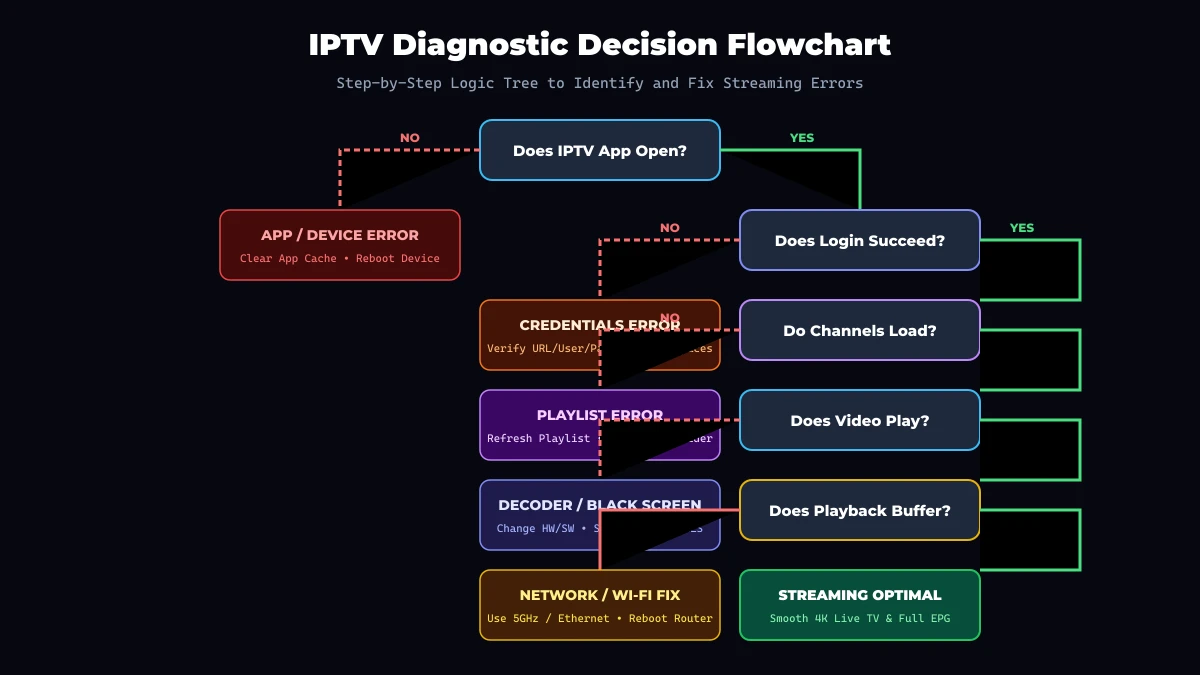 IPTV Troubleshooting Decision Tree Flowchart
- Does the IPTV app open?
- NO → See Problem 1 (App Crashes & Storage Clearing).
- YES → Move to Step 2.
- Does authentication / login succeed?
- NO → See Problem 2 (Login Failed & Credentials Check).
- YES → Move to Step 3.
- Do channel categories load in the menu?
- NO → See Problem 3 & Problem 11 (Playlist Refresh & Filters).
- YES → Move to Step 4.
- Does video play when selecting a channel?
- NO → See Problem 4 & Problem 7 (Video Decoders & Black Screen).
- YES → Move to Step 5.
- Does video buffer, freeze, or drop audio?
- YES → See Problem 5, Problem 6, & Problem 9 (Wi-Fi 5GHz, Ethernet & Audio Sync).
- NO → Your IPTV system is functioning optimally!
Is the Problem Your Internet, Your Device, Your Player, or the IPTV Service?
Reference this diagnostic matrix to categorize your streaming symptoms:
| Observed Symptom | Primary Suspect Area | First Diagnostic Action |
|---|---|---|
| App won't open / crashes | Device Storage / App RAM | Clear app cache & force stop |
| Login error (403 / Host) | Credentials / Server URL | Re-type Xtream API details without spaces |
| Empty channel list | Playlist Sync / Account Line | Click Refresh Playlist in settings |
| One channel fails | Single Broadcast Feed | Switch to HD or backup channel feed |
| All channels buffer | Home Wi-Fi / Mbps Speed | Switch to 5 GHz Wi-Fi or Cat6 Ethernet |
| Black screen with audio | Video Decoder Engine | Switch player decoder from SW to HW |
| EPG timeline empty | Timezone / Sync Clock | Adjust EPG Time Shift & sync guide data |
| Works on phone, fails on TV | TV Hardware / Wi-Fi Signal | Test Ethernet cable & check device limit |
| Fails across all devices | ISP / Server Maintenance | Test on cellular mobile data & contact support |
Quick Fixes That Solve 80% of IPTV Problems
When in doubt, applying these fifteen rapid recovery steps will resolve the vast majority of daily streaming interruptions:
- Restart your player app via your TV's application settings menu.
- Reboot your streaming device by holding the select power button for 5 seconds.
- Power-cycle your home router by unplugging it for 30 seconds.
- Switch from 2.4 GHz Wi-Fi to 5 GHz Wi-Fi for higher bandwidth stability.
- Plug in a direct Ethernet cable to eliminate wireless interference entirely.
- Verify subscription credentials for hidden spaces or character typos.
- Force playlist refresh inside your app setting menu.
- Clear application cache to remove stale temporary media files.
- Switch video decoding to Hardware (HW Acceleration) in player options.
- Set stream output format to HLS (.m3u8) for adaptive network buffering.
- Adjust player buffer size to Medium (3–5 seconds).
- Enable automatic network time synchronization on your streaming TV.
- Stop background network downloads on home computers.
- Test an alternative player application (e.g., switch between IPTV Smarters Pro and TiviMate).
- Contact technical support with your exact error code and device details.
IPTV Troubleshooting by Device
Device architecture varies across operating systems. Reference these platform-specific troubleshooting recommendations:
Amazon Firestick & Fire TV
- Clear App Cache: Navigate to Settings > Applications > Manage Installed Applications > [App Name] > Clear Cache.
- Fix Wi-Fi Interference: Use the included HDMI extender to position the Firestick away from the back of the TV.
- Storage Optimization: Firesticks require at least 1.5 GB of free space. For detailed Firestick setup instructions, check our best IPTV apps for Firestick guide.
Samsung & LG Smart TVs
- Tizen / webOS Memory: Built-in TV apps can suffer from RAM limits. Unplug your TV from the wall outlet for 60 seconds to perform a full system cold reboot.
- App Compatibility: Verify app availability in the official Samsung Smart Hub or LG Content Store as detailed in our best IPTV apps for Smart TV guide.
Android TV & Google TV
- Decoder Tuning: Open application options and set default player engine to ExoPlayer or Hardware (HW+).
- System Updates: Keep your Android TV OS updated to ensure compatibility with updated video codecs.
Apple TV 4K
- Buffer Management: Apple TV hardware features powerful processors. Ensure your player app (e.g., iPlayTV or GSE IPTV) has background app refresh enabled.
MAG & Set-Top Boxes
- Portal URL Verification: Ensure your MAG device's virtual MAC address is registered on your provider's portal, and verify the portal URL syntax inside inner portal settings.
When Should You Contact IPTV Support?
While self-help diagnostics resolve most network and hardware issues, reaching out to technical support is appropriate in the following circumstances:
- Subscription credentials are typed accurately, yet authentication fails continuously across multiple networks.
- Your account subscription displays an unexpected expiration warning.
- An entire regional category or playlist remains blank after refreshing.
- A major live sports or news broadcast feed remains offline for over 30 minutes across all backup channels.
- You need assistance adding extra simultaneous connection lines to your account on StrimoIPTV pricing plans.
When contacting our support team via WhatsApp or Telegram, providing complete diagnostic information (device model, app name, error code, and internet speed result) ensures our technical engineers can assist you quickly without back-and-forth delays.
Get Your Strimo IPTV Free Trial
Test our premium anti-freeze 4K IPTV service for 24 hours with zero commitment. Instant setup to watch over 50,000+ live channels, sports, and 200,000+ VODs on any device!